Middle Remote
One unified controller for both the motion and the camera settings adjustments. Both models connect straight to Middle Control, on macOS and Windows and are fully optimized for the software!
Prefer a video? Check the Middle Remote video on our YouTube channel.
Select your Model

- 3-axis joystick: pan, tilt, twist to zoom
- 8 touch-sensitive dials, with push
- 4 RGB camera buttons with tally
- 4 OLED displays
- USB-C (data and power)

- Hall-effect 3-axis joystick, with push button
- 12 touch-sensitive dials, with push
- 8 RGB camera buttons with tally
- 4 OLED displays
- USB-C (data), Ethernet with Power over Ethernet (PoE), 12 V DC
1. Connect to Middle Control
Middle Control talks to the remote directly over USB.
Middle Control talks to the remote directly, over USB or over the network.
Plug it in.
Connect the remote to your computer with the USB-C cable. It carries data and power.
Connect the remote to your computer with the USB-C cable, and plug in the 12 V power supply — the Pro's USB-C port carries data only.

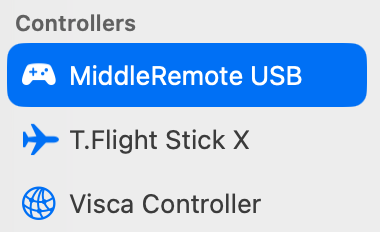
Find it in the sidebar. Within a few seconds, the remote appears under Controllers.
Check that Middle Remote Connection is set to Direct (macOS: Preferences ➜ Advanced Settings; Windows: Preferences). Direct is the default.
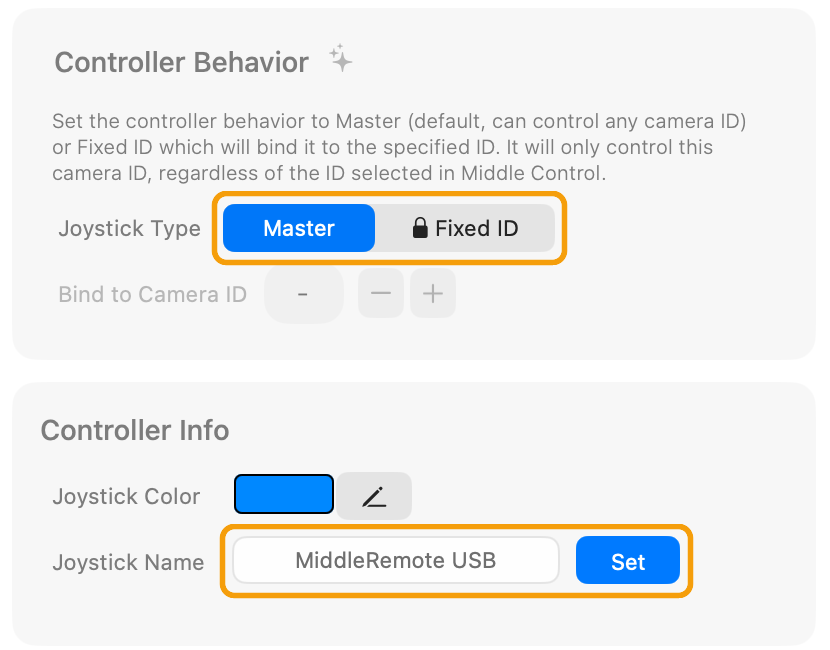
Set the Controller Behavior. Click the remote and set the Joystick Type:
- Master — follows the camera selected in Middle Control. The default.
- Fixed ID — bound to one camera, for a multi-operator setup.
That's it. Once a camera is connected, the OLED displays show the selected camera's live values.
Control over the network
The Middle Remote Pro also supports connection over the network. Connect it to your network with an Ethernet cable. A PoE switch powers it; otherwise use the 12 V supply. Middle Control finds it by itself on the network.
- The remote takes an address from your router (DHCP). To give it a fixed IP address, connect it over USB-C and open its page in Middle Control.
- When both cables are connected, the remote talks over USB. Unplug the USB-C cable to use the network.

Back of the Middle Remote Pro: power switch, 12 V DC, Ethernet (PoE), status LED, USB-C.
2. Edit Assignments
The default layout works out of the box. To change it, open the remote's page in Middle Control and click on Edit Assignments. There you can assign actions to:
- Rotary dials — Rotation sets which setting the dial adjusts (Focus, Iris, ISO, White Balance, Shutter, Roll, the speeds…), with a Sensitivity and an optional Range limit. Push sets what a press does, Auto Focus for example.
- Silicone Buttons — select cameras by default (CAM 1 to 4, CAM 1 to 8 on the Pro). Reassign any button to another camera or to an action such as Auto Focus, Zebra or Lock Remote. Pick each button's LED color; LED brightness and Follow PGM/PRV tally apply to all of them.
- 3-axis Joystick — X = Pan, Y = Tilt and the twist = Zoom by default. An axis can also drive Roll, the Focus Slider or the ND Slider. Invert an axis or set the Dead zone. A button assigned to Toggle Zoom/Roll switches the twist between zoom and roll.
- OLED Displays — show the name and live value of the dials above them, as a bar or as a value only, with an optional title and prefix (for example "WB 5400K").
On the Middle Remote Pro, the joystick's push button can be mapped as well.
The OLED displays follow your assignments and show the camera's live values. The camera buttons show in bright Blue which camera is selected and, with a Blackmagic Design ATEM switcher, its tally — green on preview, red on air.


Depending on the camera, some settings might not be available. For instance, for the AG-CX350 and its siblings, the White Balance and Shutter knobs move in steps and the OLED shows the value read from the camera. A knob assigned to Contrast shows --, as these camcorders have no contrast control over IP.
Multi-operator
Give the remote a fixed Camera ID and it becomes tied to this camera number: it keeps its camera when someone selects another one in Middle Control, and its camera buttons switch only its own camera. It can also change its own camera number. One remote per operator, several operators on one Mac. Needs Middle Control Pro — see Multi-Operator Control.
Connecting via Glue (Make Pro X)
The Middle Remote and Middle Remote Pro come preconfigured and work with Middle Control out of the box. You only need MakePro Glue, the configuration software by Make Pro X, in two cases:
- updating one or more modules' firmware,
- adding tiles to build a custom setup. Glue can then also connect to Middle Control through its Middle Control plugin.
Middle Remote Connection (macOS: Preferences ➜ Advanced Settings; Windows: Preferences) must be set to Glue for this option, and to Direct for Middle Control to look for the remote itself. While it is set to Glue, Middle Control does not scan USB or the network — a remote connected either way simply never appears, with no error message.
1. Download & Install Glue
Download Glue from the Make Pro X website and install it. It runs on macOS and Windows.
2. Load the Middle Control Solution
- Start Glue. You'll be greeted with a welcome screen — select Download from Cloud.
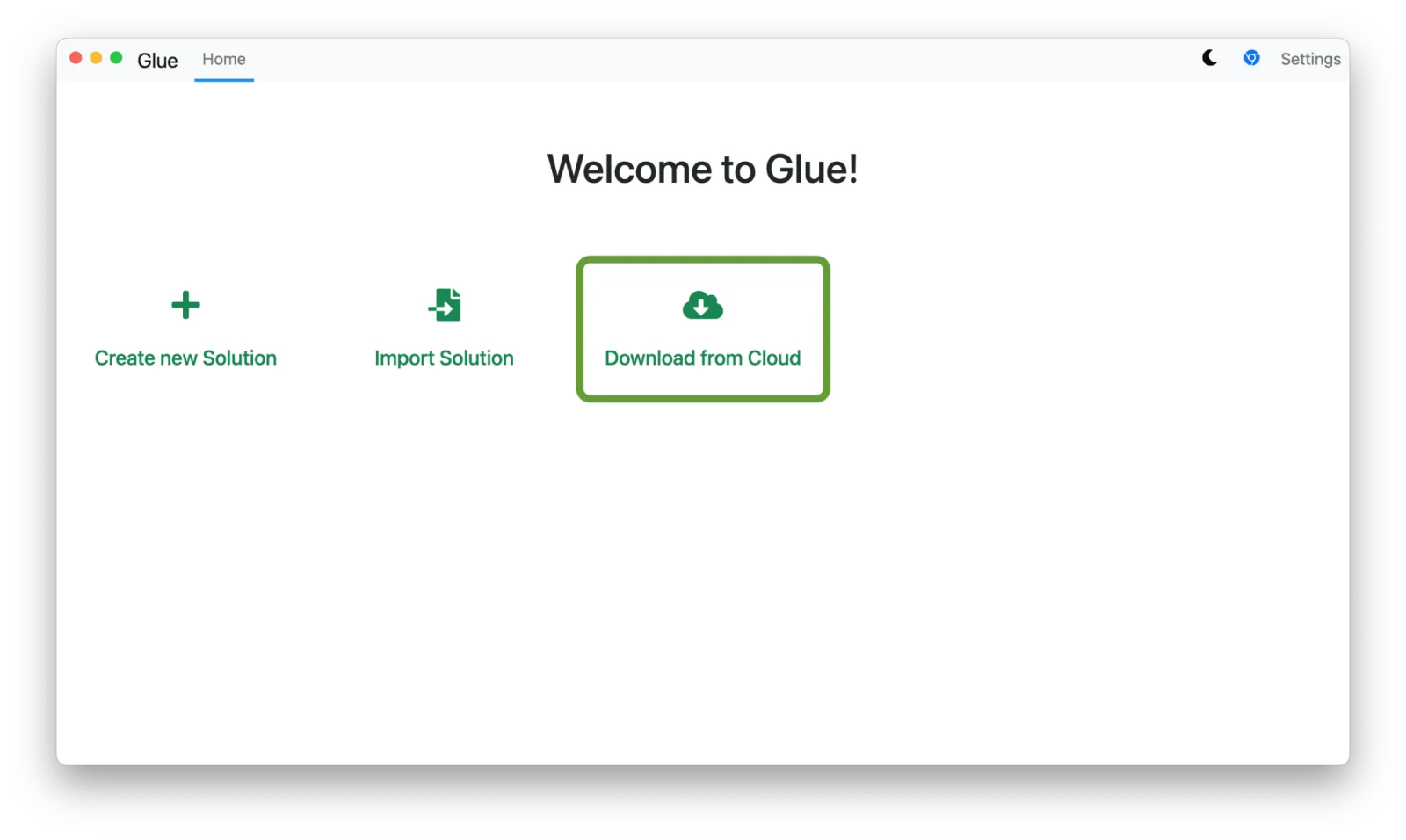
- Enter the Middle Control Solution code:
middle-control-1. - Choose the latest version, press OK, and click the Middle Control folder to open the solution.
- Go to the MakePro Devices tab and connect your Middle Remote to your laptop's USB port. It will appear in green on the left sidebar under My Devices.
Depending on your purchase date, your remote may go through an automatic update. While updating, it will show "Updating..." next to the remote name. Do not disconnect the remote until the update is finished.
- Start the Middle Control software and make sure it is connected to your ATEM.
- In Glue, go to the Features tab. You should see a green dot next to the Middle Control feature.
Your remote will now display all of your ATEM camera values on the small OLED displays, mapped to the 8 touch-sensitive dials. Select any of the Camera ID buttons (1, 2, 3, or 4) at the bottom of the remote and start controlling your gimbal and camera.
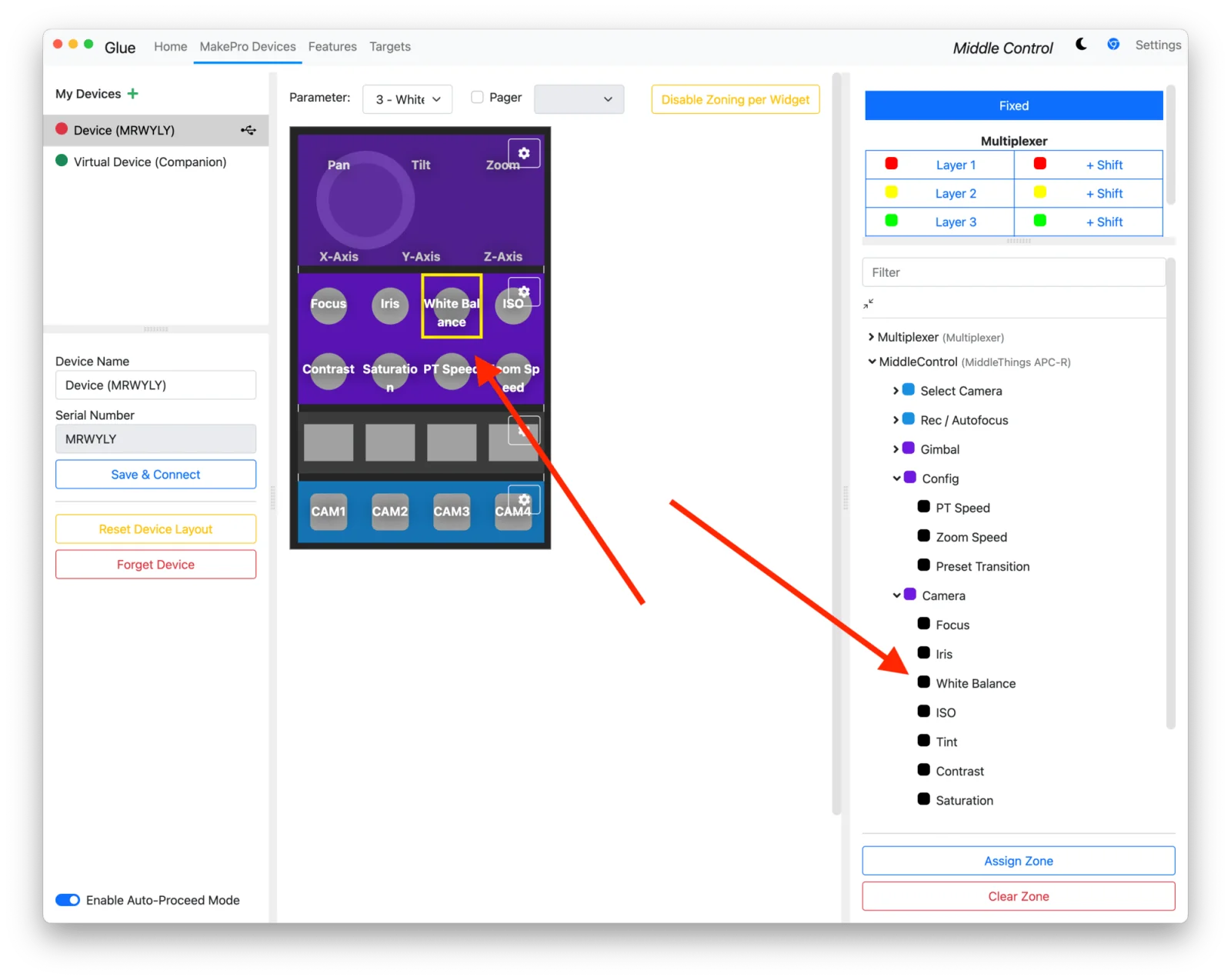
3. Assign the Middle Remote buttons
In order to get you started as soon as possible, the remote is loaded with a default configuration, but you can assign the dials and buttons differently. In order to do so, follow the instructions below:
- Go to the MakePro Devices tab.
- Click on any of the actionable remote buttons (dials, rgb buttons...)
- In the right sidebar, double click any action you want to assign to that button.
The OLED screens will automatically update.
In the Glue Settings -> Behaviour, we recommend you activate the following:
- Keep Glue running in background
- Start Glue automatically after logging in
- Hide Window on Launch
- Automatically load last opened Solution
This way, Glue will silently boot in the background each time you start your computer!
Troubleshooting
- The remote isn't in the Controllers list — set Middle Remote Connection to Direct. Use a USB-C cable that carries data (some only charge).
- A knob does nothing — the camera may not support that setting over IP; the control is greyed out in Middle Control too.
- You use Glue and the remote stopped responding after an update — Direct became the default. Set Middle Remote Connection back to Glue.
- The remote isn't in the Controllers list — set Middle Remote Connection to Direct. Use a USB-C cable that carries data (some only charge), and check that the Pro is powered (12 V supply or PoE).
- The Pro isn't found on the network — the remote and the computer must be on the same network; a computer with several network interfaces may be on another one than you think. Unplug the USB-C cable, which takes priority. Check the PoE switch or the 12 V supply.
- A knob does nothing — the camera may not support that setting over IP; the control is greyed out in Middle Control too.
- You use Glue and the remote stopped responding after an update — Direct became the default. Set Middle Remote Connection back to Glue.